

Iconography
Use these principles to select, create, and apply icons consistently across product and brand, helping us maintain a cohesive visual language.
Table of Contents
Anatomy
Sizing
Naming
Styles
Anatomy
Spokeo’s icon sizing guidelines are based on a 4px grid system.
Icon Template
Icons should be designed for readability and clarity, even at small sizes. Create icons on a 24×24px grid, using a 2px stroke and a 2px safe area.

Icon color:
Level 700 - 800 (minimum contrast: 3)
Stroke:
2px
Corners:
Rounded
Pixel grid:
24x24px
Circle (diameter):
20px
Square:
18x18px
Rectangle (horizontal):
20x16px
Rectangle (vertical):
16x20px
Sizing
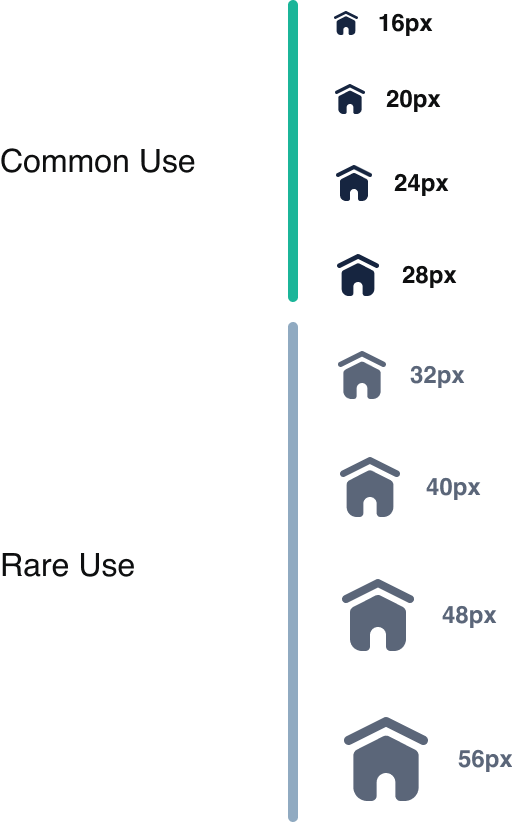
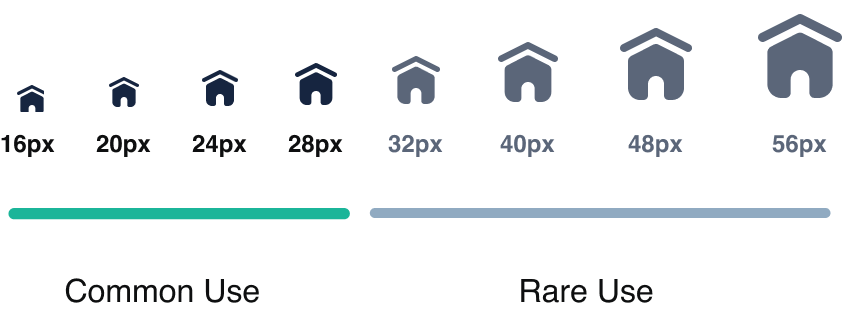
Spokeo’s icon sizing guidelines are based on a 4px grid system.
Button Variants
Usage


16x16px: Use with Small Body copy


20x20px: Use with Small Body copy


24x24px: Standard sizing


28x28px: More prominent icons


32x32px: More prominent icons


40x40px: Primarily for nested icons


48x48px: Nested icons, graphics


56x56px: Nested icons, graphics
How to Scale
To scale an icon, press "K" (Scale) on the keyboard and resize by dragging the corner of the box. Only use approved icon sizes: 20, 24, 28, 32, 40, 48, and 56px.
Naming
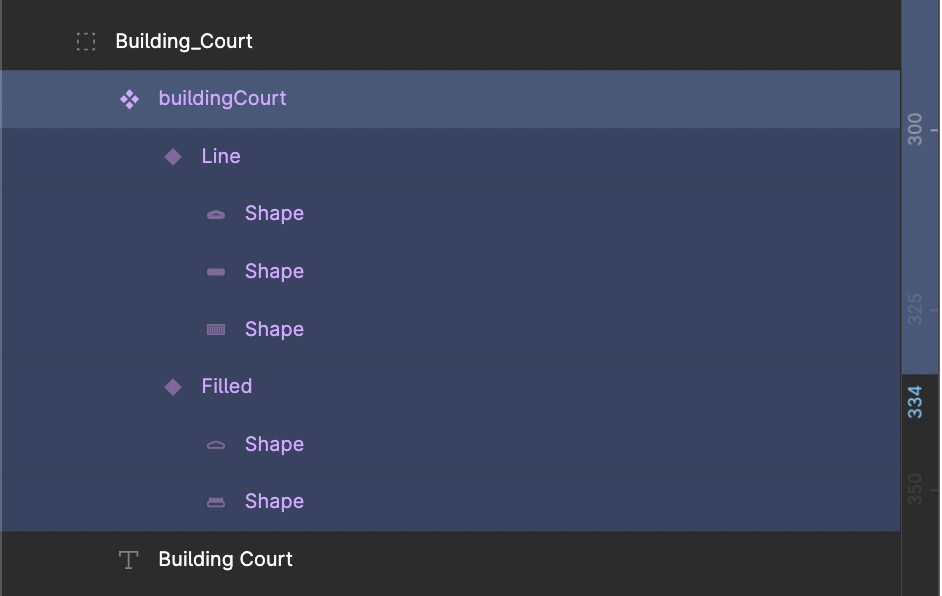
When creating icons, use the correct naming conventions. We use camelCase for icon names (e.g., “iconName”). If the name is a single word, use all lowercase.
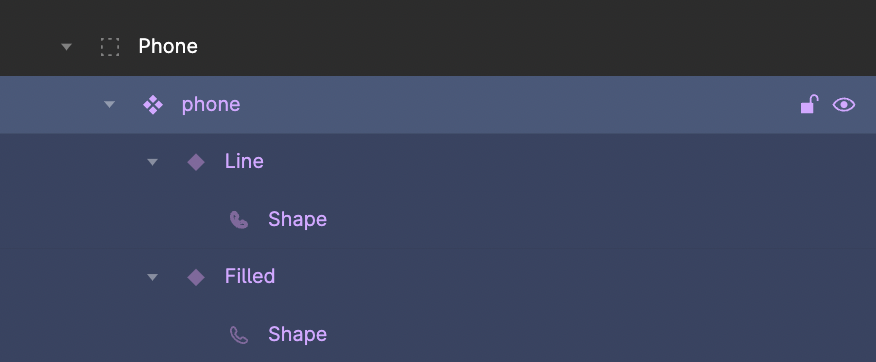
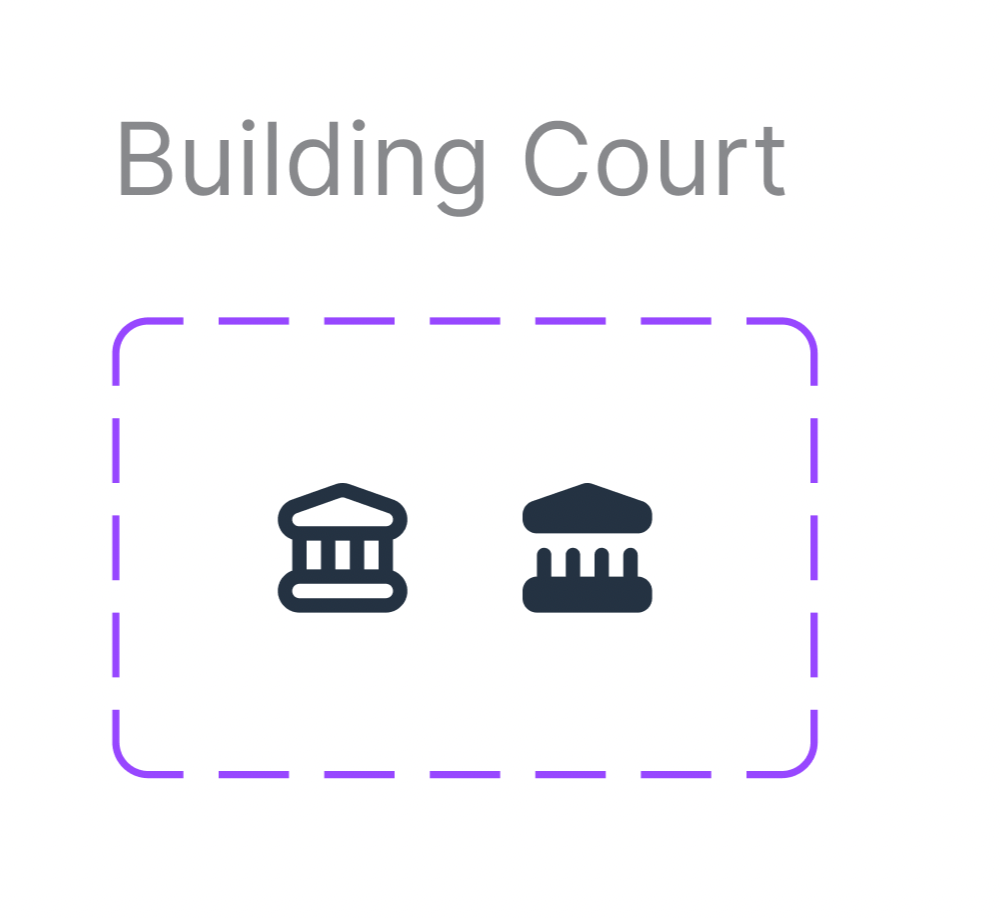
On the artboard, use the original names (e.g., “Building Court”) so they’re easier to scan.

Styles
Line is the default. Solid is earned. Interactive UI uses line icons by default and swaps to solid only when active or selected. Solid is otherwise reserved for status, trust and verification, and illustration.
Line (default)
The default for all interactive UI: navigation, menus, buttons, form fields, breadcrumbs, table actions, cards, and list rows.

Basic icon color: icon-primary
Other Icon colors: Level 700-800
(minimum contrast: 3)
Solid (exception)
Four cases only: active/selected states, status (success, error, warning, info), trust and verification marks, and illustrations.

Basic icon color: icon-primary
Other Icon colors:
Usage
The line/solid rule applied per surface. Each rule is tied to element type and state, not to perceived importance, so it can be checked in QA without interpretation.
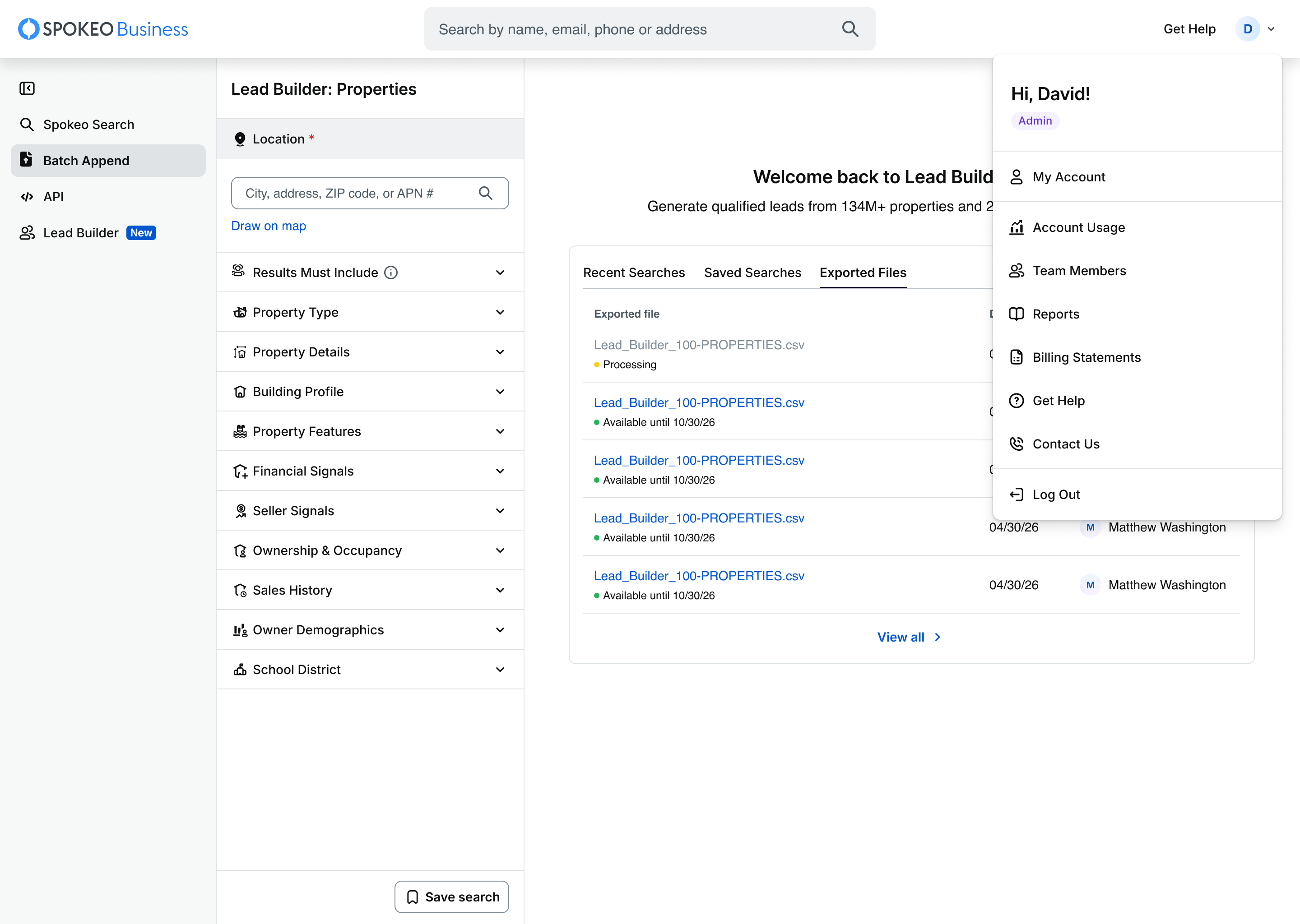
Navigation, menus & interactive UI
Default: line. Hover: line with a colour shift only — no style swap. Active/selected: solid. Focus: line plus a focus ring on the target. Disabled: line.
Hover must not swap to solid. If it does, there is no distinct signal left for “selected”, and the nav flickers as the pointer travels across it. Always pair the active swap with a second cue — underline, background, or left rail — so selection is identifiable without relying on the icon alone.
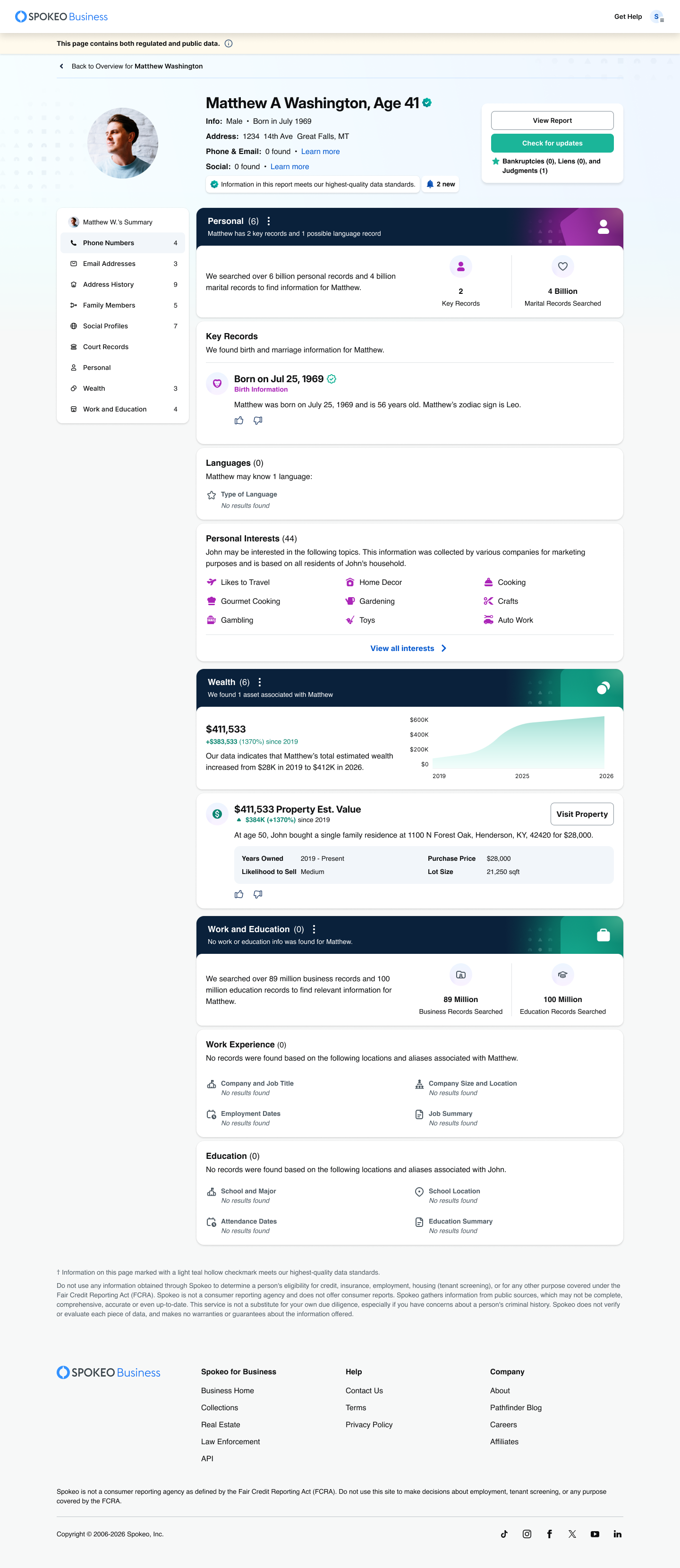
Name profile & data sections
Section header icons: line, 24px.
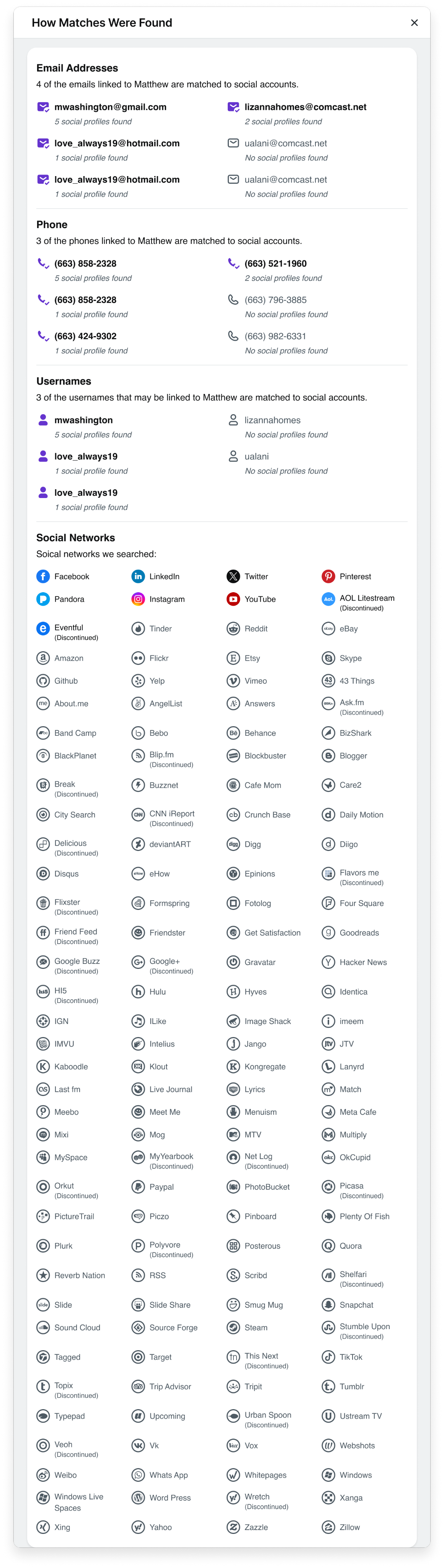
Data-quality and verification marks: solid, 16px. These are trust marks, not UI, so they take the solid exception.
Form fields & validation
Leading icons, password visibility toggles, and all field affordances: line.
Validation states (error, success): solid, and always shipped with hint text. The icon is the fast signal; the text is the instruction. Never signal an error with an icon or colour alone. Applies to every Text Field V2 variant — Basic, Payment, and Password Creation, at both Medium and Small.
Card Number


Please enter a valid credit card number
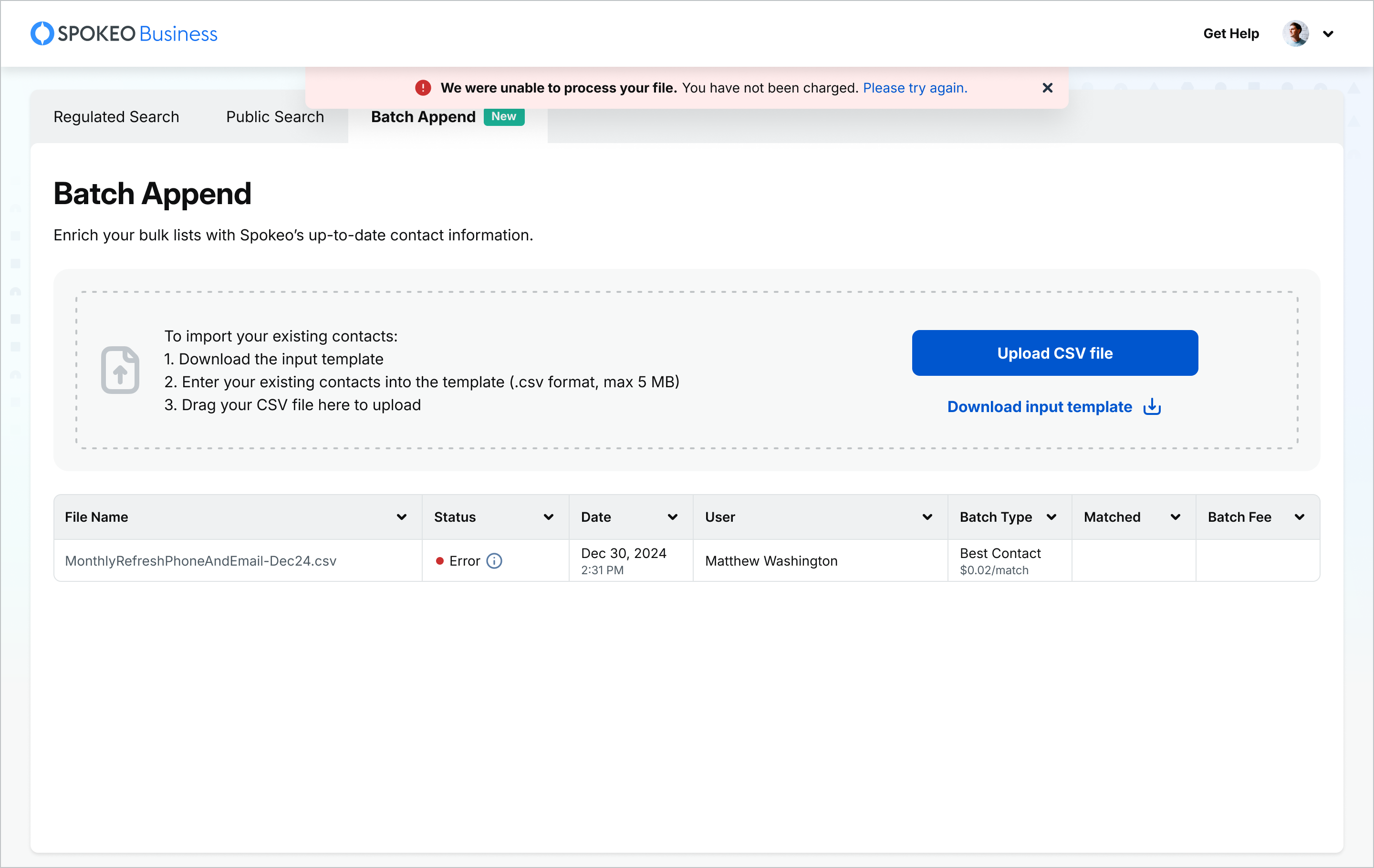
Notifications, dialogs & toasts
Single-icon messages that carry importance: solid, 20px or 24px.
Success, error, warning, and info each need a distinct shape so the meaning survives greyscale — never a bare colored dot. The dismiss control is line: it is an affordance, not the message.
Badges & buttons
Badges and buttons follow the same logic as each other.
- Status and trust badges: solid. Neutral counts and category tags: line.
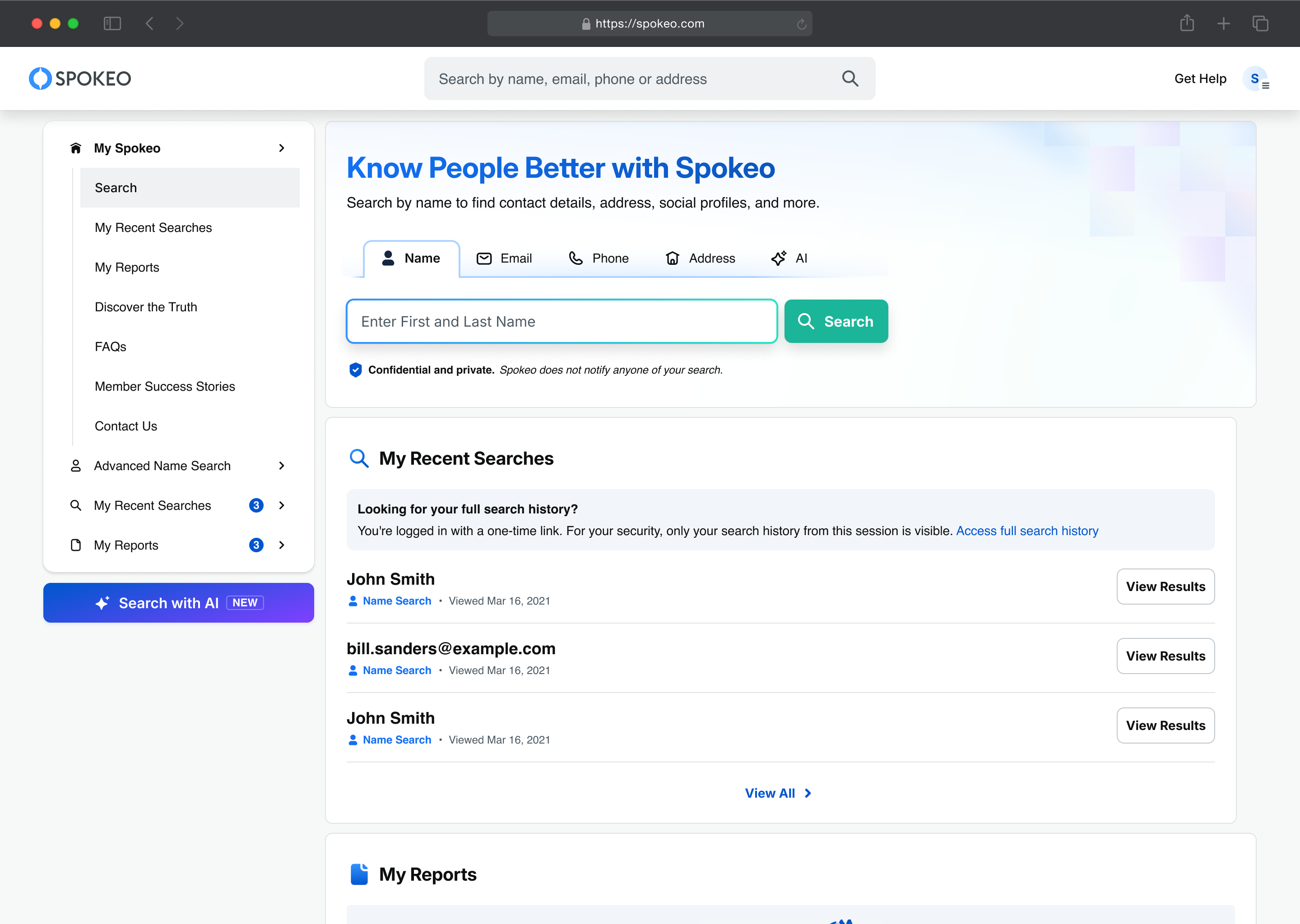
- Primary CTA: solid fill button, no icon — let the label carry it.
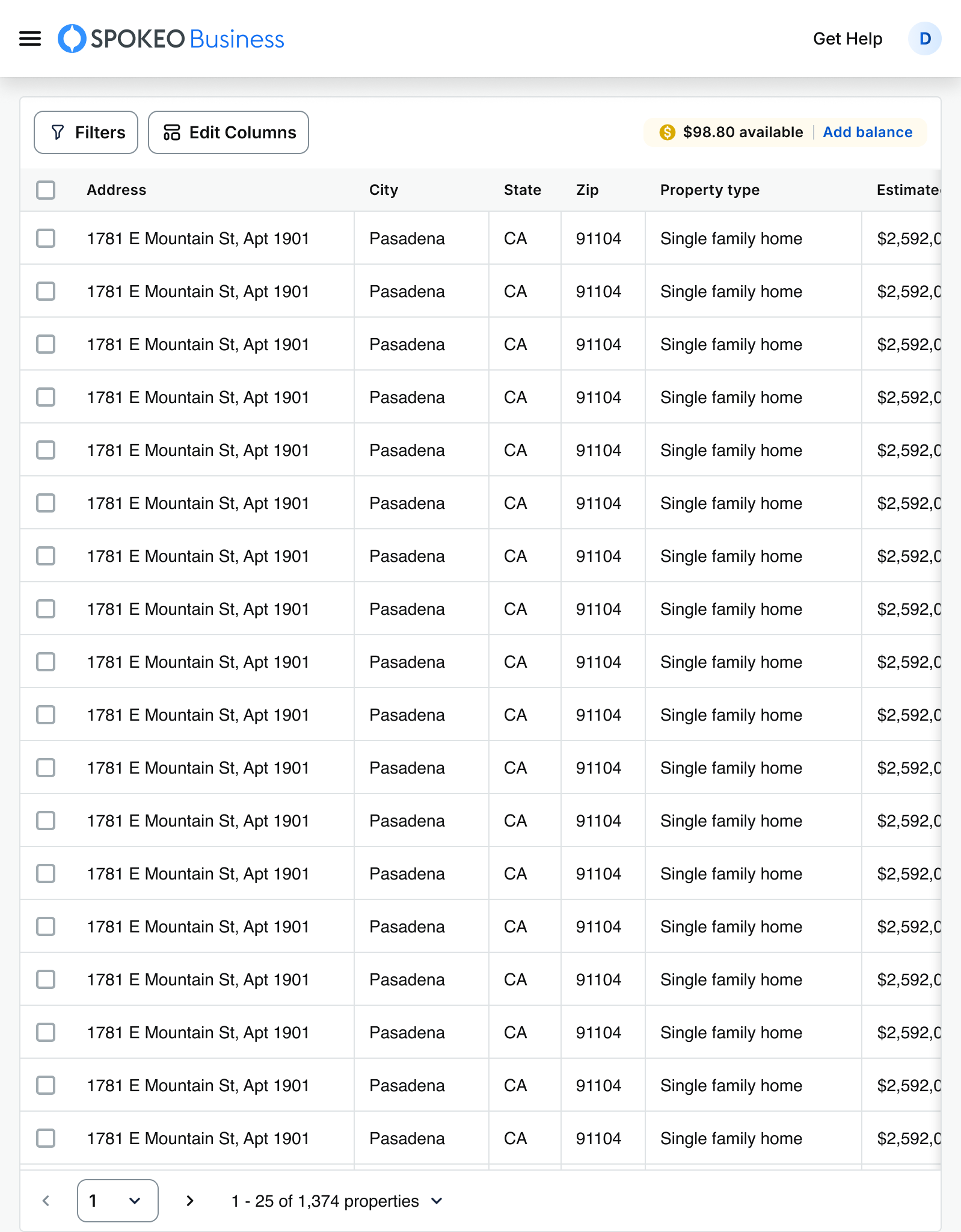
- Secondary CTA: outline button, line icon permitted (solid can be used if showing an active state; example: save filter button).
- Icon-only buttons:
- Primary: solid, 44×44px minimum target.
- Secondary: line, 44×44px minimum target.
For more button guidelines go here.
Primary Example
Secondary Example
Illustrations & lists
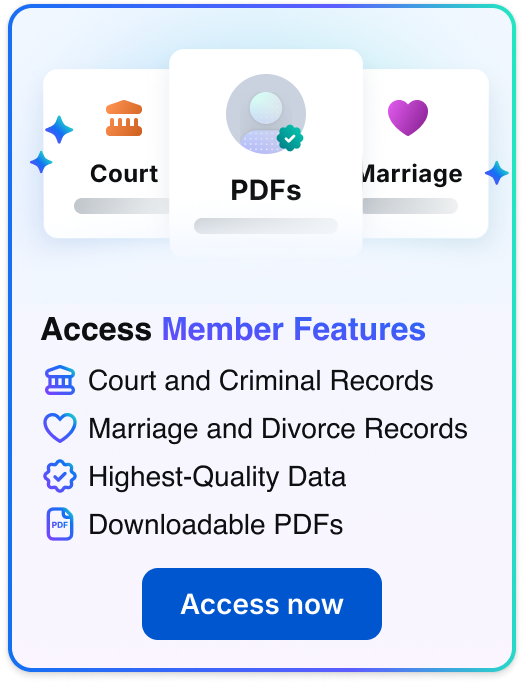
Illustrations: solid, 40–56px, decorative and hidden from assistive tech.
Lists: line, and uniform. Every row in a single list uses the same style. Mixing line and solid rows inside one list reads as an active-state signal and will be misread as one. Differentiate rows with type weight or colour, not icon fill.
Color & Tokens
Token
Color
Usage
icon.primary
Grey 1000
#0e0f10
Default icon colour. Line icons at rest, and solid icons in the active or selected state.
icon.primary.white
White
#FFFFFF
Icons on dark, brand, or image-backed surfaces.
icon.secondary
Grey 700
#4E5A63
Supporting and de-emphasised icons — nav items at rest, metadata rows, trailing chevrons.
icon.disabled
Grey 500
#818D96
Disabled icons. The contrast minimum is waived here, but the glyph must stay perceptible.
icon.status.success
Teal 800
#0C8671
Solid status icons confirming a completed action. Always paired with hint text.
icon.status.error
Red 700
#CB3030
Solid status icons on validation errors and destructive confirmations. Never the only signal.
icon.status.warning
Orange 600
#FF7626
Solid status icons for caution states that do not block the user.
icon.status.information
Blue 700
#0056CE
Solid status icons for neutral informational messages.
Icon + Text Pairing
Rules for the icon + text pattern used throughout navigation, lists, and link buttons.
Size matching
16px icon with Body/Small. 20px with Body/Medium. 24px with Body/Large.
Icon optical size should not exceed cap height by more than roughly 25%.
If a smaller icon is used, make sure to add extra padding so the icon height/size still matches the line height
Alignment & spacing
Align to the text’s optical centre on single lines. On wrapping text, align to the centre of the first line — never to the vertical centre of the whole block.
Gap: spk_space_8px for 16px icons, spk_space_12px for 20–24px. Never eyeball it.
The 2px safe area inside the 24px box is part of the icon, not padding. Don’t add gap to compensate for it or spacing drifts inconsistently across components.
Direction
Leading icons carry meaning. Trailing icons carry direction or action — chevron, external link.
Icon optical size should not exceed cap height by more than roughly 25%.
If a smaller icon is used, make sure to add extra padding so the icon height/size still matches the line height
Accessibility
Minimum 3:1 contrast for any icon carrying meaning; decorative icons are exempt.
Never convey information by icon style or color alone. The line→solid active swap must be accompanied by a second signal — background or underline.
Icon-only interactive targets need a 44×44px minimum hit area regardless of the glyph’s visual size. A 16px icon still needs 44px of target.
Focus indicators belong on the interactive container, not the glyph.
- Directional icons — arrows, chevrons, breadcrumb carets
- Icons depicting objects — clock, search, checkmark
Status Icons
Don’t merge the status icon with the main icon, so we can apply different colors to the status icon.
Some icons may include a small status indicator. Additional status indicators can be created as needed, but they must remain consistent with existing status icon styles.
Simple Icon With Status Template
- Use a shape in the template to subtract the area for the status icon.
- Place the status icon.
- Flatten the subtraction.
- Update the shape and add rounded edges, if needed.
Important: Do not combine the status icon with the main icon, so the status color can be updated independently.


Status Icons Example
Status icons should not be used as standalone icons.
We have 10 status types: Add, Remove, Edit, Check, Upload, Download, Search, View, Favorite, and Locked.


Icon size:
8x8px
Creating Icons
To create more icons we can use additional sets. First use Universal, then Bootsy and if there is no icons we can use Streamline Flex and Streamline Bold.
When adding a new icon, place it in the icon set (internal use only) and update the Design System changelog in Confluence (internal use only). Include the icon category, file name, and Figma link in the update.
Export new icons as SVG and upload them to the icon set Google Drive folder (internal use only).
Using the Universal Icon Set
Spokeo icons are based on the Universal icon set, so no changes are needed. Simply create a new component.
Using the Bootsy Icon Set
Sizing
When using the Bootsy icon set, only select icons that are not already represented in our icon library. Review each icon’s anatomy and style to ensure it matches our icon system, and update as needed.
Bootsy Icon Usage
Only use Bootsy for icons that are not already in our icon library. Review and adjust styling as needed to match our icon system before adding the icon to the set.

Naming
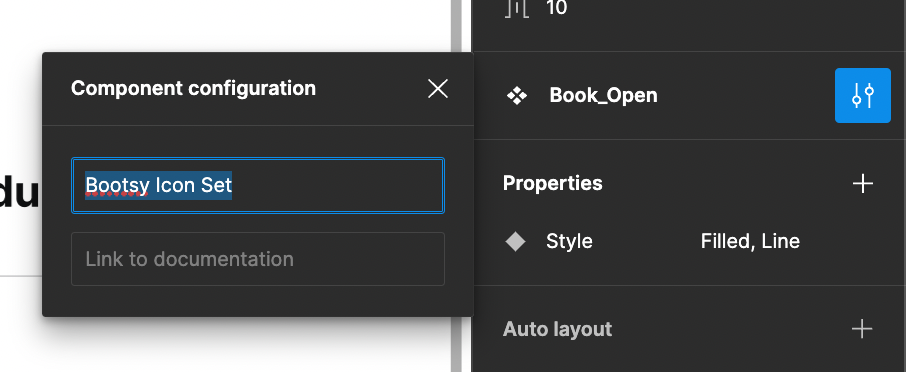
When using the Bootsy icon set, add the icon set name to the Component Configuration description and place the icon under the “From Bootsy” category on the artboard.
Using the Streamline Icon Set
Sizing
When using the Streamline icon set, note that Streamline icons do not include a built-in safe area. Place the 20px Streamline icon inside a 24px box to create the required 2px safe area.
Streamline Icon Usage
To match our icon system, first place the 20px Streamline icon inside a 24px container. Once it’s updated, scale it to the required size.

Naming
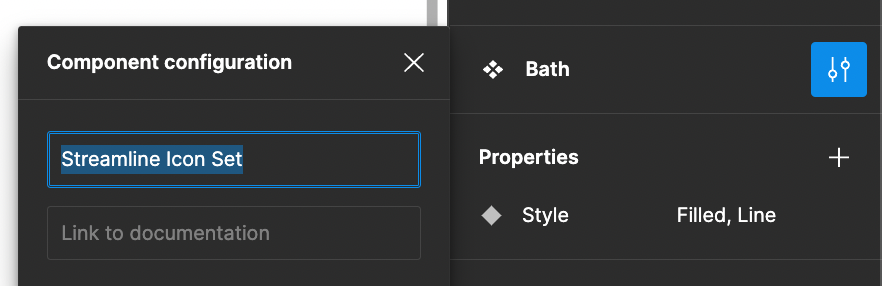
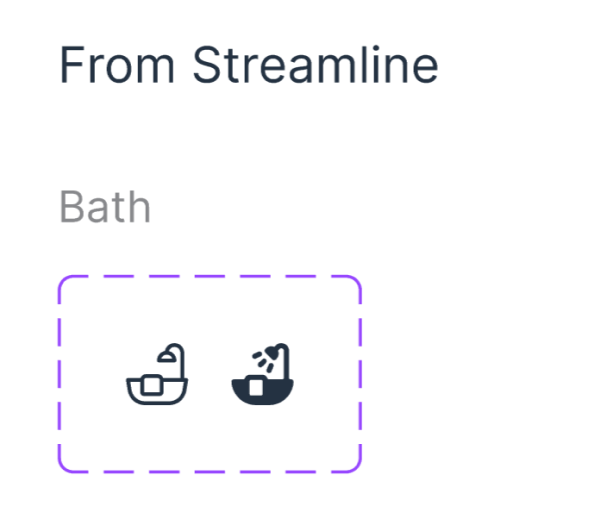
When using the Streamline icon set, add the icon set name to the Component Configuration description and place the icon under the “From Streamline” category on the artboard.
Best Practices
Each rule is shown as a pair so the failure mode is visible, not just the success case. Examples are built from live library components, so the line and solid glyphs shown are the real variants rather than mockups.

Phone (2)

Do: Pair supporting/secondary text with simple icons

Young Adults
Home Decor
Young Adults
Do: Use simple icons for listing information
View All Results

Do: Use simple icons for link buttons
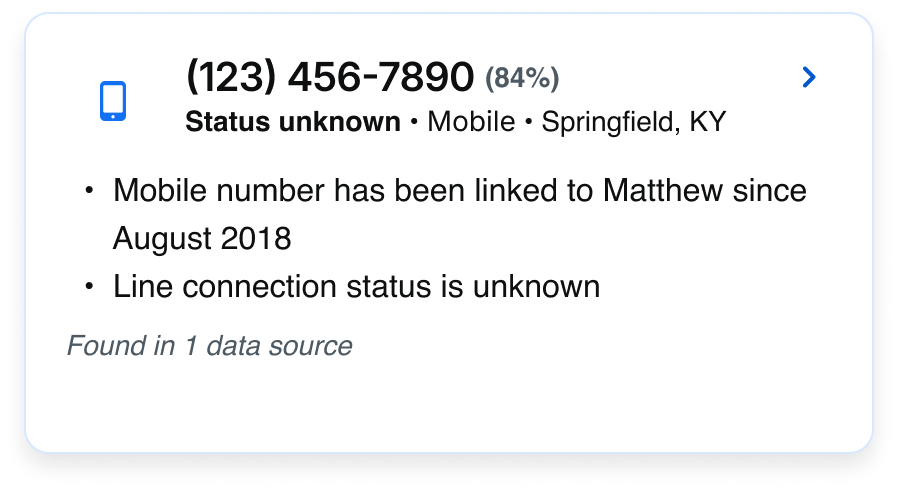

Don’t: Pair a simple icon with the primary card title

My Reports
Recent Searches

Advanced Name Searches
Do: Use line icons for interactive UI at rest

My Reports
Recent Searches

Advanced Name Searches
Don’t: Use solid icons for default states
My Reports
Recent Searches
Advanced Name Searches
Do: Pair the solid swap with a second cue
My Reports
Recent Searches
Advanced Name Searches
Don’t: Rely on fill alone to show selection
My Reports
Recent Searches
Saved Alerts
Do: Differentiate rows with type weight
Personal Interests (0)

General
No results found

Sports
No results found

Automotive
No results found

Collector
No results found

Music
No results found

Lifestyle
No results found

Household insights
No results found

Fitness
No results found
Don’t: Mix line and solid rows in one list

Verified record
16px icon · Body/Small
Do: Match icon size to paired type size

Verified record
32px icon · Body/Small

Don’t: Oversize the icon against small type

Information marked with this symbol meets our highest-quality data standards.
Do: Align to the first line of wrapping text
Information marked with this symbol meets our highest-quality data standards.
Don’t: Centre the icon against a multi-line block
44 × 44 target · 16px glyph
Do: Keep a 44×44px minimum hit area
20 × 20 target · 16px glyph
Don’t: Shrink the hit area to the glyph
First name
John Smith

Please limit first name to 60 characters
Do: Ship validation icons with hint text
First name
John Smith

Don’t: Signal an error with a red icon alone


Contact Us
Terms
Privacy Policy
Copyright © 2006-2025 Spokeo, Inc.


Iconography
Use these principles to select, create, and apply icons consistently across product and brand, helping us maintain a cohesive visual language.

Table of Contents
Anatomy
Spokeo’s icon sizing guidelines are based on a 4px grid system.
Icon Template
Icons should be designed for readability and clarity, even at small sizes. Create icons on a 24×24px grid, using a 2px stroke and a 2px safe area.
Icon color:
Level 700 - 800 (minimum contrast: 3)
Stroke:
2px
Corners:
Rounded
Pixel grid:
24x24px
Circle (diameter):
20px
Square:
18x18px
Rectangle (horizontal):
20x16px
Rectangle (vertical):
16x20px
Sizing
Spokeo’s icon sizing guidelines are based on a 4px grid system.
Button Variants
Usage
16x16px: Use with Small Body copy
20x20px: Use with Small Body copy
24x24px: Standard sizing
28x28px: More prominent icons
32x32px: More prominent icons
40x40px: Primarily for nested icons
48x48px: Nested icons, graphics
56x56px: Nested icons, graphics
How to Scale
To scale an icon, press "K" (Scale) on the keyboard and resize by dragging the corner of the box. Only use approved icon sizes: 20, 24, 28, 32, 40, 48, and 56px.
Naming
When creating icons, use the correct naming conventions. We use camelCase for icon names (e.g., “iconName”). If the name is a single word, use all lowercase.
On the artboard, use the original names (e.g., “Building Court”) so they’re easier to scan.
Styles
Line is the default. Solid is earned. Interactive UI uses line icons by default and swaps to solid only when active or selected. Solid is otherwise reserved for status, trust and verification, and illustration.
Line (default)
The default for all interactive UI: navigation, menus, buttons, form fields, breadcrumbs, table actions, cards, and list rows.
Basic icon color: icon-primary
Other icon colors: Level 700-800 (minimum contrast: 3)
Solid (exception)
Four cases only: active/selected states, status (success, error, warning, info), trust and verification marks, and illustrations.
Basic icon color: icon-primary
Other icon colors: Level 700-800 (minimum contrast: 3)
Usage
The line/solid rule applied per surface. Each rule is tied to element type and state, not to perceived importance, so it can be checked in QA without interpretation.
Navigation, menus & interactive UI
Default: line. Hover: line with a colour shift only — no style swap. Active/selected: solid. Focus: line plus a focus ring on the target. Disabled: line.
Hover must not swap to solid. If it does, there is no distinct signal left for “selected”, and the nav flickers as the pointer travels across it. Always pair the active swap with a second cue — underline, background, or left rail — so selection is identifiable without relying on the icon alone.
Name profile & data sections
Section header icons: line, 24px.
Data-quality and verification marks: solid, 16px. These are trust marks, not UI, so they take the solid exception.
Form fields & validation
Leading icons, password visibility toggles, and all field affordances: line.
Validation states (error, success): solid, and always shipped with hint text. The icon is the fast signal; the text is the instruction. Never signal an error with an icon or colour alone. Applies to every Text Field V2 variant — Basic, Payment, and Password Creation, at both Medium and Small.
Card Number
Please enter a valid credit card number
Notifications, dialogs & toasts
Single-icon messages that carry importance: solid, 20px or 24px.
Success, error, warning, and info each need a distinct shape so the meaning survives greyscale — never a bare colored dot. The dismiss control is line: it is an affordance, not the message.
Badges & buttons
Badges and buttons follow the same logic as each other.
- Status and trust badges: solid. Neutral counts and category tags: line.
- Primary CTA: solid fill button, no icon — let the label carry it.
- Secondary CTA: outline button, line icon permitted (solid can be used if showing an active state; example: save filter button).
- Icon-only buttons:
- Primary: solid, 44×44px minimum target.
- Secondary: line, 44×44px minimum target.
For more button guidelines go here.
Primary Example
Secondary Example
Illustrations & lists
Illustrations: solid, 40–56px, decorative and hidden from assistive tech.
Lists: line, and uniform. Every row in a single list uses the same style. Mixing line and solid rows inside one list reads as an active-state signal and will be misread as one. Differentiate rows with type weight or colour, not icon fill.
Color & Tokens
Token
Color
Usage
icon.primary
Grey 1000
#0e0f10
Default icon colour. Line icons at rest, and solid icons in the active or selected state.
icon.primary.white
White
#FFFFFF
Icons on dark, brand, or image-backed surfaces.
icon.secondary
Grey 700
#4E5A63
Supporting and de-emphasised icons — nav items at rest, metadata rows, trailing chevrons.
icon.disabled
Grey 500
#818D96
Disabled icons. The contrast minimum is waived here, but the glyph must stay perceptible.
icon.status.success
Teal 800
#0C8671
Solid status icons confirming a completed action. Always paired with hint text.
icon.status.error
Red 700
#CB3030
Solid status icons on validation errors and destructive confirmations. Never the only signal.
icon.status.warning
Orange 600
#FF7626
Solid status icons for caution states that do not block the user.
icon.status.information
Blue 700
#0056CE
Solid status icons for neutral informational messages.
Icon + Text Pairing
Rules for the icon + text pattern used throughout navigation, lists, and link buttons.
Size matching
16px icon with Body/Small. 20px with Body/Medium. 24px with Body/Large.
Icon optical size should not exceed cap height by more than roughly 25%.
If a smaller icon is used, make sure to add extra padding so the icon height/size still matches the line height
Alignment & spacing
Align to the text’s optical centre on single lines. On wrapping text, align to the centre of the first line — never to the vertical centre of the whole block.
Gap: spk_space_8px for 16px icons, spk_space_12px for 20–24px. Never eyeball it.
The 2px safe area inside the 24px box is part of the icon, not padding. Don’t add gap to compensate for it or spacing drifts inconsistently across components.
Direction
Leading icons carry meaning. Trailing icons carry direction or action — chevron, external link.
Icon optical size should not exceed cap height by more than roughly 25%.
If a smaller icon is used, make sure to add extra padding so the icon height/size still matches the line height
Accessibility
Minimum 3:1 contrast for any icon carrying meaning; decorative icons are exempt.
Never convey information by icon style or color alone. The line→solid active swap must be accompanied by a second signal — background or underline.
Icon-only interactive targets need a 44×44px minimum hit area regardless of the glyph’s visual size. A 16px icon still needs 44px of target.
Focus indicators belong on the interactive container, not the glyph.
- Directional icons — arrows, chevrons, breadcrumb carets
- Icons depicting objects — clock, search, checkmark
Status Icons
Don’t merge the status icon with the main icon, so we can apply different colors to the status icon.
Some icons may include a small status indicator. Additional status indicators can be created as needed, but they must remain consistent with existing status icon styles.
Simple Icon With Status Template
- Use a shape in the template to subtract the area for the status icon.
- Place the status icon.
- Flatten the subtraction.
- Update the shape and add rounded edges, if needed.
Important: Do not combine the status icon with the main icon, so the status color can be updated independently.
Status Icons Example
Status icons should not be used as standalone icons.
We have 10 status types: Add, Remove, Edit, Check, Upload, Download, Search, View, Favorite, and Locked.
Icon size:
8x8px
Creating Icons
To create new icons, start with Universal, then Bootsy. If an icon isn’t available, use Streamline Flex or Streamline Bold.
When adding a new icon, place it in the icon set (internal use only) and update the Design System changelog in Confluence (internal use only). Include the icon category, file name, and Figma link in the update.
Export new icons as SVG and upload them to the icon set Google Drive folder (internal use only).
Using the Universal Icon Set
Spokeo icons are based on the Universal icon set, so no changes are needed. Simply create a new component.
Using the Bootsy Icon Set
Sizing
When using the Bootsy icon set, only select icons that are not already represented in our icon library. Review each icon’s anatomy and style to ensure it matches our icon system, and update as needed.
Bootsy Icon Usage
Only use Bootsy for icons that are not already in our icon library. Review and adjust styling as needed to match our icon system before adding the icon to the set.
Naming
When using the Bootsy icon set, add the icon set name to the Component Configuration description and place the icon under the “From Bootsy” category on the artboard.
Using the Streamline Icon Set
Sizing
When using the Streamline icon set, note that Streamline icons do not include a built-in safe area. Place the 20px Streamline icon inside a 24px box to create the required 2px safe area.
Streamline Icon Usage
To match our icon system, first place the 20px Streamline icon inside a 24px container. Once it’s updated, scale it to the required size.
Naming
When using the Streamline icon set, add the icon set name to the Component Configuration description and place the icon under the “From Streamline” category on the artboard.
Best Practices
Each rule is shown as a pair so the failure mode is visible, not just the success case. Examples are built from live library components, so the line and solid glyphs shown are the real variants rather than mockups.
Phone (2)
Do: Pair supporting/secondary text with simple icons
Young Adults
Home Decor
Young Adults
Do: Use simple icons for listing information
View All Results
Do: Use simple icons for link buttons
Don’t: Pair a simple icon with the primary card title
My Reports
Recent Searches
Advanced Name Searches
Do: Use line icons for interactive UI at rest
My Reports
Recent Searches
Advanced Name Searches
Don’t: Use solid icons for default states
My Reports
Recent Searches
Advanced Name Searches
Do: Pair the solid swap with a second cue
My Reports
Recent Searches
Advanced Name Searches
Don’t: Rely on fill alone to show selection
My Reports
Recent Searches
Saved Alerts
Do: Differentiate rows with type weight
Personal Interests (0)
General
No results found
Sports
No results found
Automotive
No results found
Collector
No results found
Music
No results found
Lifestyle
No results found
Household insights
No results found
Fitness
No results found
Lifestyle
No results found
Don’t: Mix line and solid rows in one list
Verified record
16px icon · Body/Small
Do: Match icon size to paired type size
Verified record
32px icon · Body/Small
Don’t: Oversize the icon against small type
Information marked with this symbol meets our highest-quality data standards.
Do: Align to the first line of wrapping text
Information marked with this symbol meets our highest-quality data standards.
Don’t: Centre the icon against a multi-line block
44 × 44 target · 16px glyph
Do: Keep a 44×44px minimum hit area
20 × 20 target · 16px glyph
Don’t: Shrink the hit area to the glyph
First name
John Smith
Please limit first name to 60 characters
Do: Ship validation icons with hint text
First name
John Smith
Don’t: Signal an error with a red icon alone

Contact Us
Terms
Privacy Policy
Copyright © 2006-2025 Spokeo, Inc.